What is it?
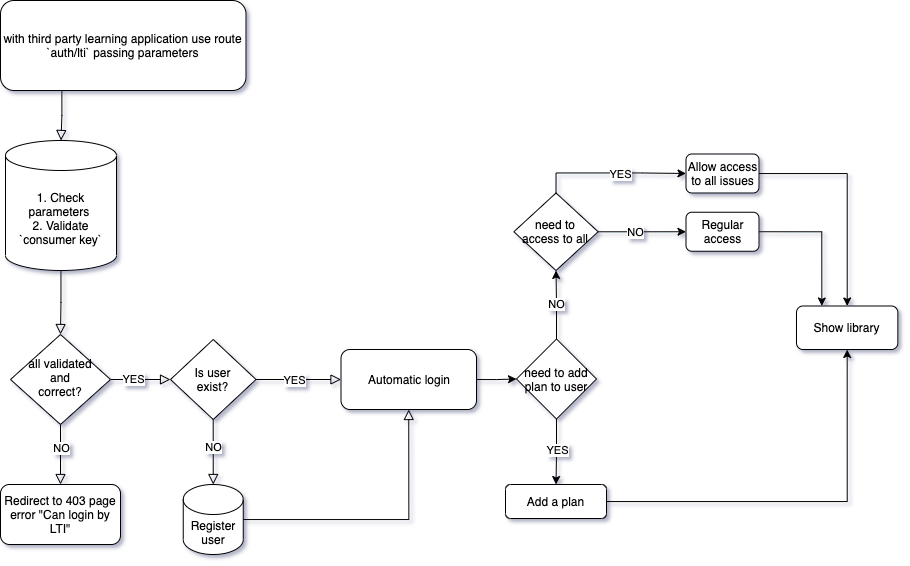
This integration allow make an automatic auth to specific user when this is try to login from an configuration LTI.
IMS Learning Tools Interoperability (LTI) is a standard set of specifications for allowing third party learning applications (or "tool providers") to integrate with educational platforms (or "tool consumers").
LTI lets you easily integrate external tools (automatic login) into your learning management system (LMS) and allow to user connect with the store like SSO (single sign on) without complete a form.
You can read more
We use a GET rute in the platform. The route is:
https://{customer-store.com}/auth/lti
Pre-requisites
Required for use:
- Have Unlimited or Revenue Share* plan
- Enabled feature "LTI - Api Integration"
*For Revenue Share plans, this integration can be configure after sold an external plan and is only configurable after the payment has been approved.
How does it work?
Auth LTI allow login automatically using a link without complete a login form. For it, you need to create a new connection LTI generating
- A name like
consumer key - A new key like
shared secret - Set if the publications are access without limitation or assign plan an user connected via LTI.
After that you can configure the connection with third party learning application, using the information about connection created.
In the store, when a LTI connection is used a new user is created if this is not exist or used if this user exist. Also, the user can configure:
- An email
- A Password
For use to access outside of LTI automatic connection. For example, if user has an email and password, can use Android or Apple tenant app if this has one disponible.
Accoding configuration, the user created has assigned too a plan that allow access to publications (according plan configuration) and the user see the same publication if access to store using LTI or regular login.
How to configure it?
- Go to
settingfromcontrol panel - Select
integrations - In place
LTI Settingscreate a new one set necessary items - Save and share with third party learning application (You can see this data using
editbutton) - If you need change some data, you can do using edit button.
Session duration
- The session will expire after 2 hours of idle time.
- The session will immediately expire on the browser closing.
Tips
- You can send us the parameter
reader_exit_urland we will use this value allows you to configure the behavior for redirecting the user when they choose to exit the reader. This is useful for customizing a unique exit experience that reflects the integrator's identity.
Follow next URLs according the learning application that you need configure it.
Moodle
Canvas
Schoology
How to test it
To test LTI integrations we will set a dummy identity provider using https://saltire.lti.app/platform. Since LTI uses redirects from the browser, we can even test it in our local environments.
- First, we should create the integration in our tenant
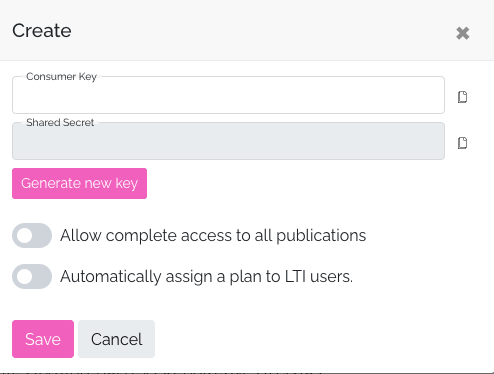
- Consumer Key: test
- Shared secret: Click on the "generate new key" button
- You can grant access to all the store content or to a single plan
- Enter the link: https://saltire.lti.app/platform and complete the requested information.
- Platform, Context/Resource, User and Message sections can be left with their default values
- Security model sections
- Message URL: https://farfalla.publica.la/auth/lti
- Consumer key: test
- Shared secret: lti-0d92687a-0905-4ae3-8769-97b6840f664d
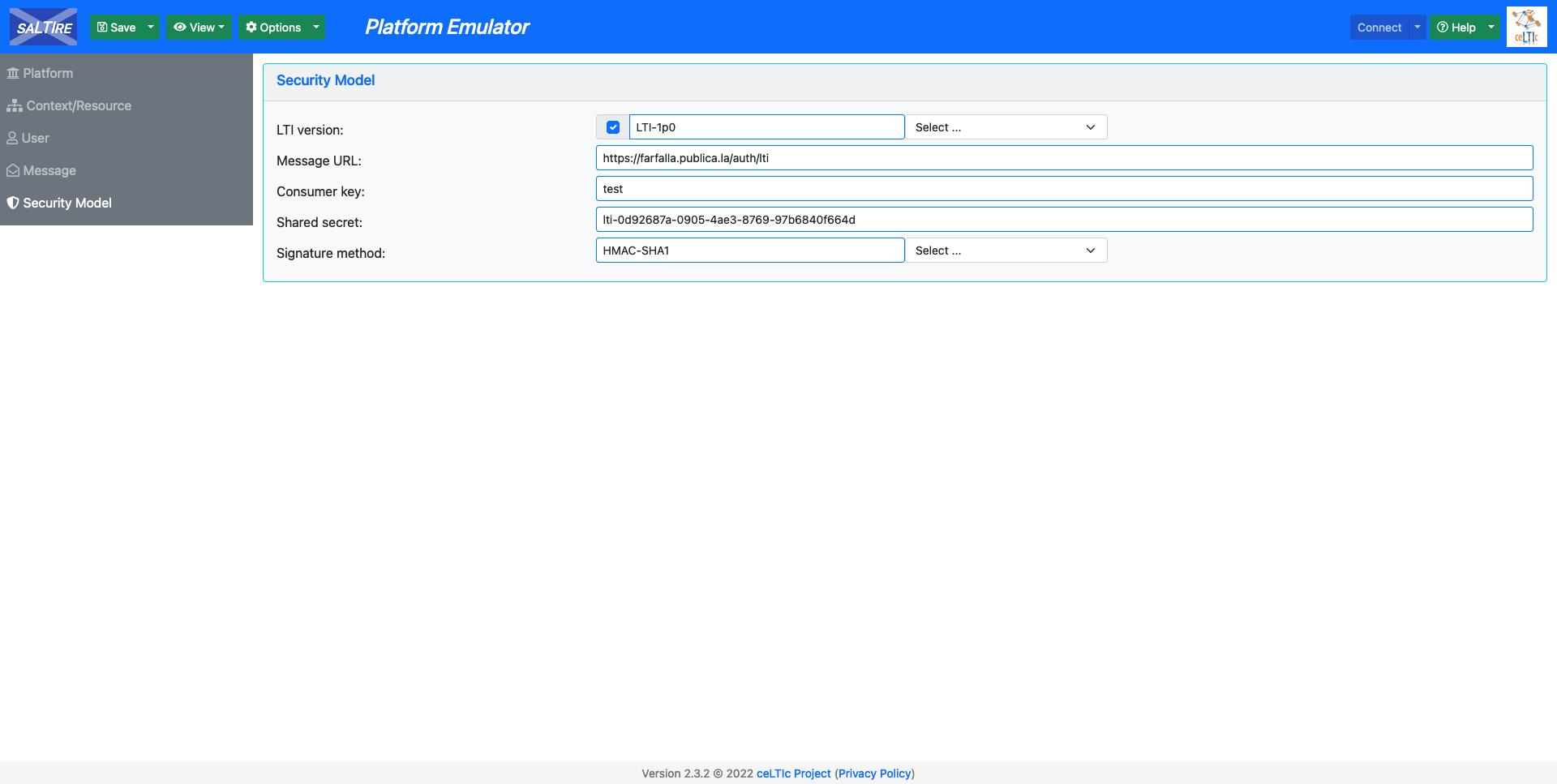
Note: When a data is changed, some of the screens must be saved to continue to the next one.
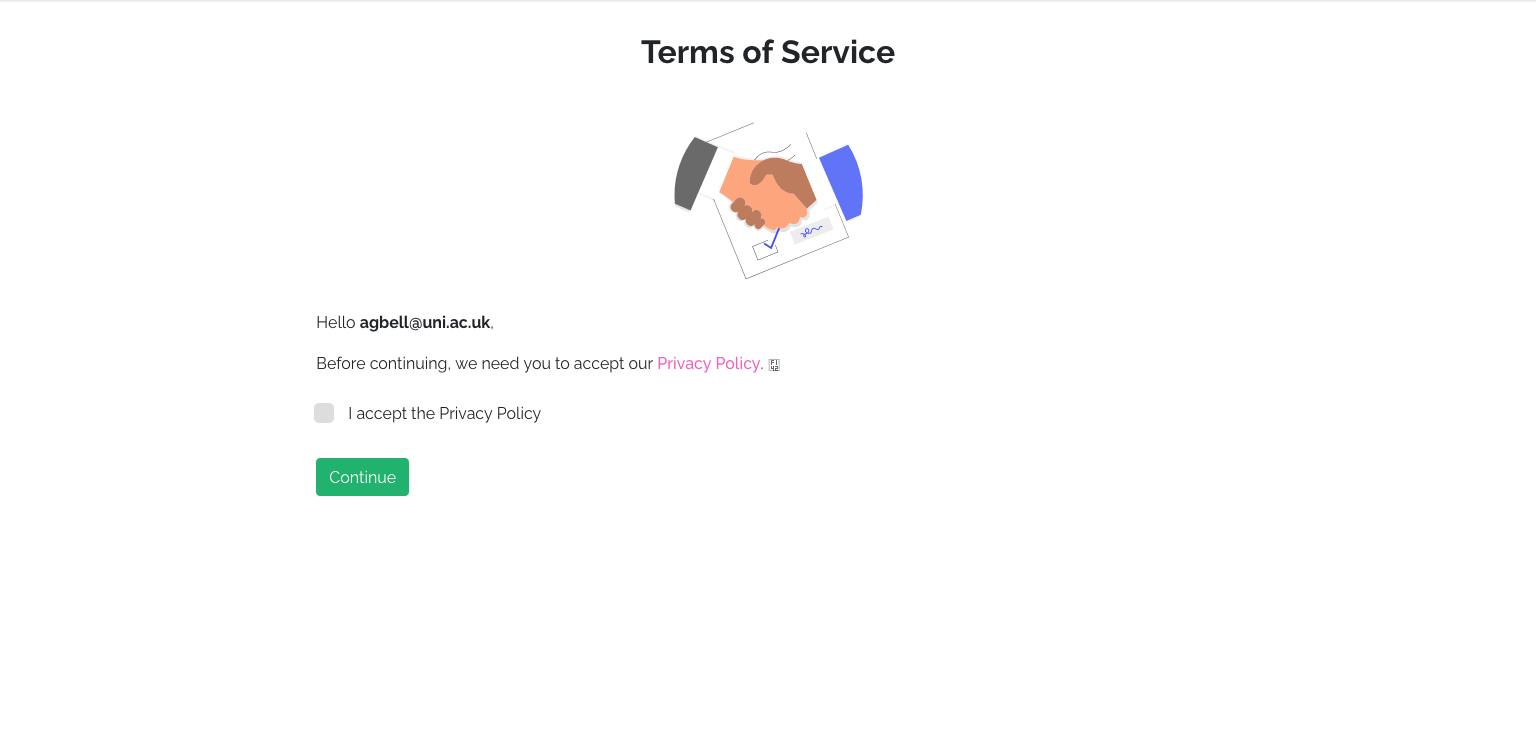
- You are logged in
Tools
Autoconfig:
Troubleshooting
When an user access using LTI do he need to complete email and password?
No, always that user use LTI, login is automatic. He can complete email and password for access diretly from the store, without use LTI connection.
If learning platform give personalized access to to books or plan, the final user with user and password created can access to all plan or all publications?
The user only has access to a plan assigned. In case that configuration has access to all publications, only can use this access using the login LTI.
The ID that admin show in user tab is the same that IP?
No, the ID is refer to external_id and this is use for found the user for login automatically.
User can access using other devices?
User could access using other devices if they set email and password and go directly to store web app.
What happens if a user already has a plan assigned, and that plan was assigned through LTI
We will expire that assignation and assign the new plan.
What happens if a user already has a plan assigned, and that plan was not assigned through LTI
We won;t expire that assignation, we'll assign the new plan through LTI and the user will end up with 2 plans.
Other resources
- Whats LTI and how does it work:
- Testing tools: http://lti.tools/saltire/
- Implement from the Tool Consumer (mostly LMSs) side: https://medium.com/lcom-techblog/simple-lti-tool-consumer-in-html-and-javascript-72ca153d7a83
- Configuring LTI in popular LMSs: https://www.edu-apps.org/tutorials.html
- Autoconfig: